
Southwest Airlines: Travel App
Southwest AirlinesTravel & Local
4.459.55K Reviews
- Version
- 13.22.1
- Installs
- 10.00M
- Age Rating
- Everyone
Screenshots


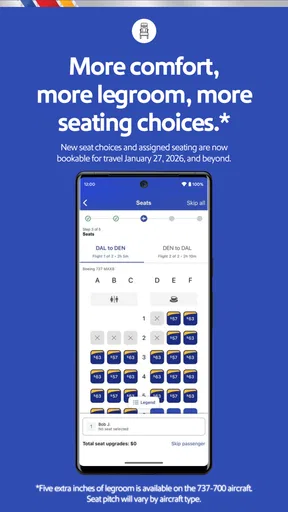
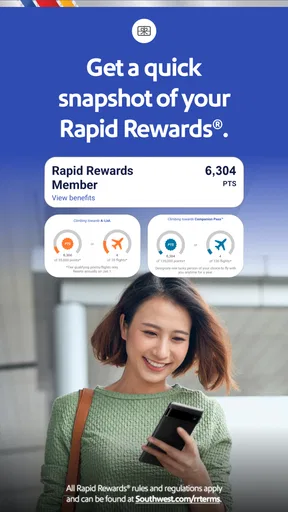
Our Review of Southwest Airlines: Travel App
 Analysis by Appyee
For a first trip with Southwest, I’d treat the app as a practical place to handle the airline part of the journey, rather than as a complete travel planner. The first useful goal is simple: find a flight that fits your dates, then keep the booking easy to reach when travel day comes. If you’re nodding along, then you might want to check out the Southwest Airlines: Travel App. I’ve been diving into this app recently, and it’s like having a personal travel assistant right in your pocket.
A Smooth Takeoff
Let’s start with the basics. Once you download the Southwest Airlines: Travel App, you’re greeted with a super clean interface. I’m talking no clutter, just the essentials. You can easily sign into your Rapid Rewards account or set one up if you’re not already a member. Right off the bat, it’s clear they’ve put a lot of thought into making sure you spend less time swiping and more time enjoying your trip.
Getting Started Without Overplanning
Southwest Airlines, the developer behind this free travel app, has been in the app stores since Nov 29, 2010. It’s rated for Everyone, runs on Android 8.0 and later, and its current version is 12.11.4. Those details make it easy to check whether it suits your device before you begin. The app has a 4.5 average from around 166,000 ratings and more than 10 million installs, which suggests it has become a familiar option for many travelers, though popularity alone can’t tell you whether its workflow suits your trip.
For a first-time user, I’d begin by deciding whether you want to sign in or simply explore the booking process. A Rapid Rewards account is useful if you already collect points or expect to fly Southwest again, but the immediate task is choosing a route and dates. Keep your destination and travel window handy before you open the search; that makes it easier to compare options without bouncing between the app and a calendar. If you’re planning for someone else, confirm their dates and names before getting far into a booking, since the app is most helpful when the basic trip details are settled.
Booking Made Easy
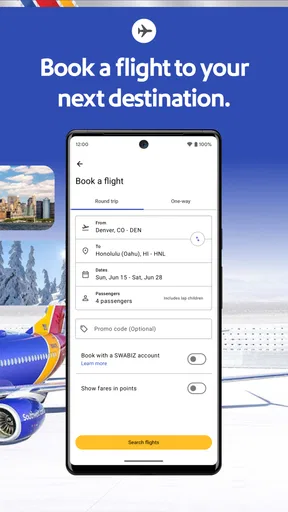
Booking flights through the app is a breeze. You just pop in your destination, select your dates, and voilà, you’re presented with all the flight options. I really appreciated the way they highlight the Wanna Get Away fares, which is perfect for those of us who love a good deal. Plus, you can filter flights based on time, number of stops, and even price, making it super convenient to find exactly what you need.
My practical tip is to compare the whole itinerary, not just the first low-looking fare or departure time. A nonstop flight may be worth choosing over a cheaper connection when you have a tight arrival plan, while a less convenient time can make sense if your schedule is flexible. Filters are helpful for narrowing choices, but I’d still pause on the final selection and make sure the timing works for the ground arrangements too: a late arrival can affect a hotel check-in or the ride waiting at the airport.
This is also where the app’s scope matters. It belongs to the travel and local category, but its strongest reason to install it is managing Southwest travel. It can be a convenient starting point when you’re choosing an airline and booking a flight; it isn’t a neutral comparison tool for every carrier. If your priority is comparing many airlines side by side, I’d use a general travel search service for that first, then use Southwest’s app when you’ve decided to book or manage a Southwest itinerary.
In-Flight Features
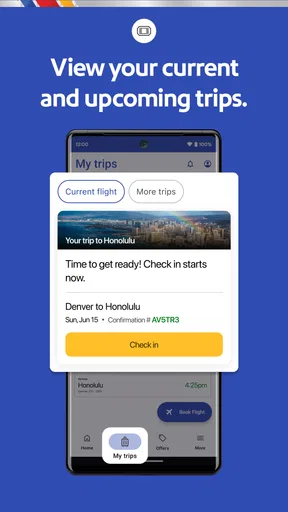
Once you’ve booked your flight, the app continues to impress with its in-flight features. You can check in 24 hours in advance, and the app will send you a mobile boarding pass, which is a lifesaver. No more fumbling with paper tickets or worrying about losing them. Additionally, you can track your flight status in real-time, which means no surprises at the gate. And if you’re like me and always forget to pack headphones, the app offers free in-flight entertainment options. Just connect to the Southwest Wi-Fi and start streaming movies, TV shows, and even live TV.
For a realistic travel-day routine, I’d open the trip before leaving home, check the flight status, and keep the boarding pass easy to retrieve after check-in becomes available. At the airport, that saves you from trying to remember which email contains the confirmation while you’re carrying bags or looking for the right line. The pass is especially handy if you prefer not to print travel documents, but I’d still keep a backup plan for accessing your phone, such as charging it before heading out. A digital pass is convenient only while your device is usable.
One point worth keeping in mind is that in-flight entertainment depends on connecting to Southwest Wi-Fi. The app is a way into those options, not a guarantee that streaming will work in every moment of a flight. I’d bring headphones and download anything I personally need through my usual services before travelling, rather than counting on onboard streaming as my only entertainment. That small bit of preparation makes the app’s entertainment a bonus instead of a source of stress.
Making Sense of Check-In and Flight Updates
First-time flyers sometimes expect checking in to happen as soon as a ticket is booked. The flow described here is tied to the 24-hour-before-departure window, so it’s worth setting a reminder rather than repeatedly opening the app long before then. When the time comes, complete check-in and make sure the boarding pass is available on your phone. If you’re travelling with another person, check that you can access the information you need for each traveler instead of assuming one person’s screen has covered every detail.
Flight tracking is useful for keeping an eye on changes, but I wouldn’t use one screen as a reason to stop paying attention at the airport. Check the app when you’re planning the trip to the airport and again as you get closer to departure; then follow airport signs and announcements as well. That balance is sensible because an app helps you stay informed, while airport staff and displays remain part of the real-world travel process.
Extra Perks
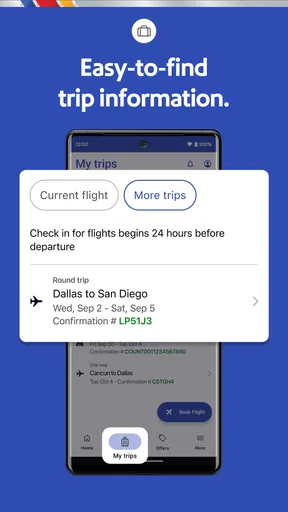
Beyond the basics, the app offers some sweet extras. You can easily add EarlyBird Check-In, upgrade your boarding position, or purchase additional Rapid Rewards points. It’s all about making your travel experience as smooth and enjoyable as possible. And speaking of ease, the app also allows you to manage your upcoming trips, view your travel history, and even access your Rapid Rewards account details. Everything is just a tap away.
I’d think of these extras as choices to consider, not steps every traveler needs to take. If a particular option matters to your plans, review it while you’re already checking your itinerary, rather than adding things simply because they appear in the app. The useful trade-off is convenience: managing a trip in one airline app can be simpler than searching through old emails, but each optional purchase should still match what you actually want from the journey.
For repeat Southwest travelers, the account and travel-history tools can make the app more useful over time. Someone taking one occasional flight may mostly need the booking, check-in, and trip-status functions. If you travel with a family member or are coordinating a pickup, a good workflow is to settle the flight details first, then share the arrival plan with the person meeting you. The airline app can help you follow the flight; it doesn’t replace arranging transport or lodging separately.
Where This App Fits in a Travel Plan
Compared with using a browser and separate airline emails, an airline app gives you a focused place to return to for your own booking and travel tasks. That focus is its strength when you already know Southwest is the airline you want. A broader booking service may be a better first stop if you’re weighing multiple carriers, hotels, or a whole itinerary across providers. Once the flight is chosen, though, I find it more straightforward to use the airline’s own app for flight-related actions than to rely on a general travel tool for every airline-specific step.
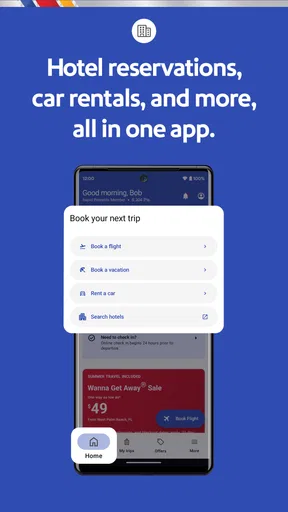
The store summary also points to hotel booking and more, which may appeal if you want to explore travel arrangements in one place. I’d still compare hotel choices with the options you normally use and check the actual details before confirming anything. A combined travel app can reduce app-switching, but it doesn’t automatically make every booking the best fit. My advice is to use it where it saves effort and keep your usual comparison habits for decisions where price, location, or flexibility matters most.
This app is a particularly sensible choice for someone who has a Southwest flight coming up, wants a mobile boarding pass, or would rather check trip details from one airline-focused place. It may be less useful if you rarely fly Southwest, mainly want a broad search across airlines, or prefer to keep every travel document in a different organizer. The right choice depends less on how many features an app has and more on whether it fits the trip you’re actually taking.
If you run into a problem, the app provides a help section and a way to contact customer service. I’d use the help resources for questions about navigating the app, and contact support when the issue concerns a booking or needs a person’s attention. It’s reassuring to have a route to assistance in the same place as your trip, although I wouldn’t plan on needing help at the last possible minute. Checking your itinerary and pass before you leave gives you more time to deal with a snag calmly.
Final Thoughts
In a nutshell, the Southwest Airlines: Travel App is a game-changer for anyone who loves to travel but hates the hassle that often comes with it. It’s user-friendly, packed with features, and designed with the traveler in mind. Whether you’re a frequent flyer or planning your first trip, this app is worth the download. So next time you’re planning a getaway, give it a shot. Trust me, your future travel self will thank you.
My more measured recommendation is to install it when you’re booking or preparing for a Southwest flight, then use it for the steps it handles well: reviewing options, keeping your trip accessible, checking in, and staying aware of flight status. For a first meaningful success, search your route, choose an itinerary that fits your real schedule, and return to the trip when check-in opens. That gives you a clear sense of the app’s value without requiring you to use every extra feature.
Privacy and Permissions
See what permissions an app requests and how it handles your data.
- Calendar
- read calendar events plus confidential information, add or modify calendar events and send email to guests without owners' knowledge
- Location
- approximate location (network-based), precise location (GPS and network-based)
- Phone
- read phone status and identity
- Photos/Media/Files
- read the contents of your USB storage, modify or delete the contents of your USB storage
- Storage
- read the contents of your USB storage, modify or delete the contents of your USB storage
- Camera
- take pictures and videos
- Wi-Fi connection information
- view Wi-Fi connections
- Device ID & call information
- read phone status and identity
- Other
- view network connections, change network connectivity, connect and disconnect from Wi-Fi, control flashlight, full network access, run at startup, control vibration, prevent device from sleeping, read Google service configuration
Verdict
Strengths of Southwest Airlines: Travel App
- User-friendly interface for easy navigation.
- Real-time flight status updates.
- Mobile boarding passes available.
- Quick access to booking and reservations.
- Integrated rewards and points tracking.
Limitations of Southwest Airlines: Travel App
- Limited offline functionality.
- Occasional app crashes reported.
- Requires frequent updates for new features.
- Not all features available in all regions.
- In-app ads can be distracting.
Similar Picks in This Category
View All
Google Maps
Google LLC3.4

Google Maps Go
Google LLC4.1

Booking.com: Hotels & Travel
Booking.com Hotels & Vacation Rentals4.8

Google Earth
Google LLC3.8

Skyscanner Flights Hotels Cars
Skyscanner Ltd4.8

trivago: Compare hotel prices
trivago N.V.4.4
Frequently Asked Questions
What features does the Southwest Airlines app offer for travelers?
The Southwest Airlines app provides a wide range of features to enhance your travel experience. Users can book flights, check in, view flight status, and access mobile boarding passes. Additionally, the app offers real-time updates, baggage tracking, and the ability to manage Rapid Rewards points. It's designed to make travel planning seamless and stress-free.
Is the Southwest Airlines app free to download and use?
Yes, the Southwest Airlines app is completely free to download on both Android and iOS devices. There are no hidden fees for using the app itself. However, keep in mind that standard data charges from your carrier may apply when using the app's online features, such as booking flights or checking flight status.
How can I book a flight using the Southwest Airlines app?
Booking a flight through the Southwest Airlines app is straightforward. Simply open the app, navigate to the 'Book a Flight' section, and enter your travel details such as departure and arrival cities, travel dates, and passenger information. The app will display available options, allowing you to select and purchase your desired flight with ease.
Can I earn and manage Rapid Rewards points through the app?
Absolutely! The Southwest Airlines app allows you to manage your Rapid Rewards account conveniently. You can view your point balance, track recent activity, and even earn points when booking flights directly through the app. This integration makes it easy for frequent flyers to keep track of and maximize their rewards.
What should I do if I encounter issues with the app?
If you experience any issues while using the Southwest Airlines app, there are several steps you can take. First, ensure your app is updated to the latest version. Check your internet connection, as a weak signal might cause problems. If issues persist, contact Southwest Airlines customer support for further assistance, as they can provide specialized help.
